

The cylinder is a three-dimensional shape, that can be described as a circular prism with parallel sides and circular top and bottom.
Coordinates
| Name | Description |
|---|---|
| Position | This will move the object along X, Y and Z axis in the local space. |
| Scale | Scale of the coordinate system. To scale the Object check the settings under “Display” |
| Rotation | Rotation of the object along X, Y and Z axis. |

Cylinder Dimensions
| Name | Description |
|---|---|
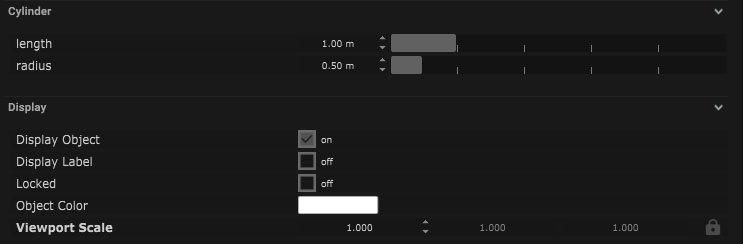
| Length | Size of the parallel sides in meters. |
| Radius | Distance from the center of the object to the edge of the circle in meters. |
Display
| Name | Description |
|---|---|
| Display Object | If ticked, the object will be visible in the scene. If un-ticked, the object will not be visible. |
| Display Label | When on, there will be a label displayed next to the object. |
| Locked | When un-ticked, it activates keyboard shortcuts – pressing ‘E’ allows you to move and ‘R’ rotate. |
| Object Colour | Double click the colour block and this will open a colour picker. This can be used to change the object display colour. |
| Viewport Scale | Dimensions of the object in the viewport in meters. |
Display Settings Tutorial
Node Based
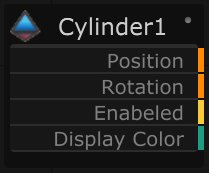
The object can be controlled and used as a node. The node is created by clicking and dragging the parameter on to the board.
| Name | Description |
|---|---|
| Type |
|
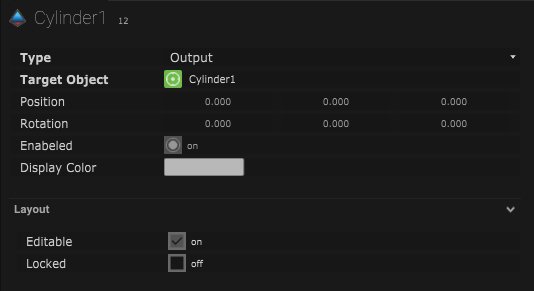
| Target Object | This is the object that will either be affected by the incoming values or output information. |
| Position | The directional XYZ values will be displayed here. |
| Rotation | The rotational XYZ values will be displayed here. |
| Enabled | When on, the parameter is active and enabled. |
| Display Colour | This colour block can be changed by changing the parameter. |
Layout
| Enabled | When on, the parameter is active and enabled. |
| Locked | When on, the node is locked into its position on the board. |